How to generate owner statements in Rezvia
Learn how to generate monthly owner statements in Rezvia, add adjustments, approve payouts and export PDFs.
Introduction
The Owner Statements module lets you create a monthly payout report for each property, with that period's figures organised into an official record.
With it you can:
The statement calculation runs in parallel to the current financials. That means it does not change the operation's financial entries: it creates a snapshot of the period to serve as the official record of the payout agreed with the owner.
Generating a statement
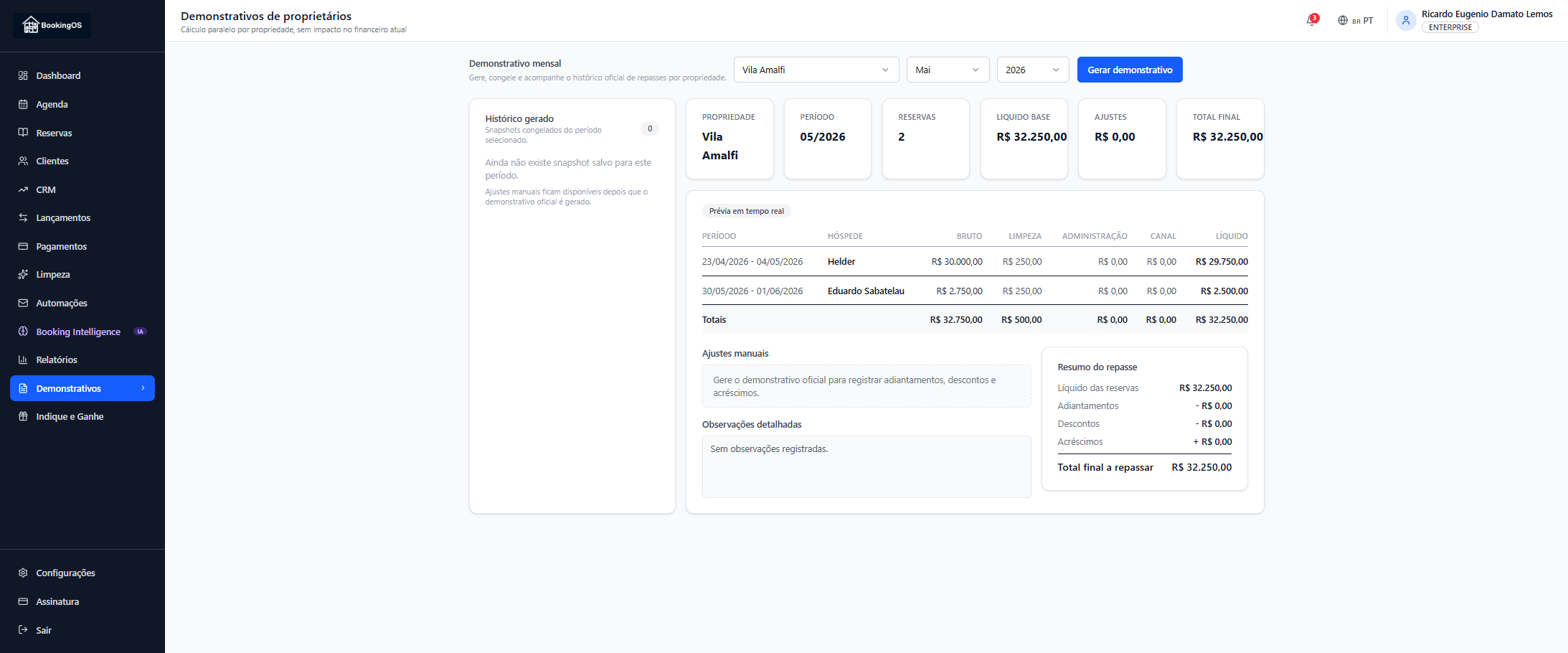
To start, go to Finance → Statements in the sidebar and set the period filters.
1. Select the property whose payout will be calculated.
2. Choose the statement month.
3. Choose the corresponding year.
4. Click Generate statement.
At the top of the screen, cards summarise the statement's key information:
Before you click Generate statement, there is no saved snapshot for that period. Manual adjustments only become available once the statement is generated.
The generated statement
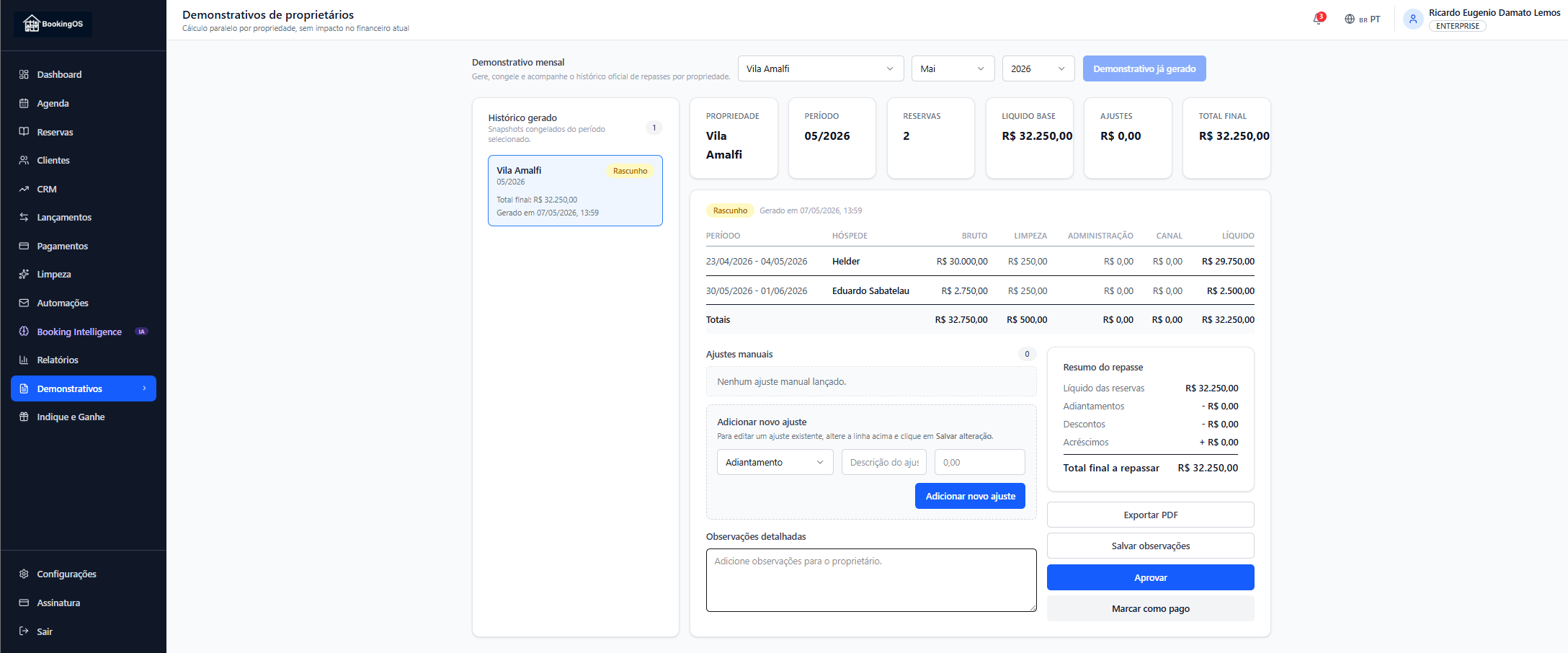
After generating, Rezvia creates a statement record with the status Draft. At that point you can review the figures before approving.
The booking table shows the stays included in the period. Each row helps you check where the calculation came from and which deductions were applied.
In the payout summary, the main fields are:
While still a draft, you can add manual adjustments to record advances, extra discounts or additions agreed with the owner.
You can also fill in detailed notes, export the statement as a PDF, click Approve once everything is checked, and then use Mark as paid to record that the payout has been settled.
Adjustments and approval
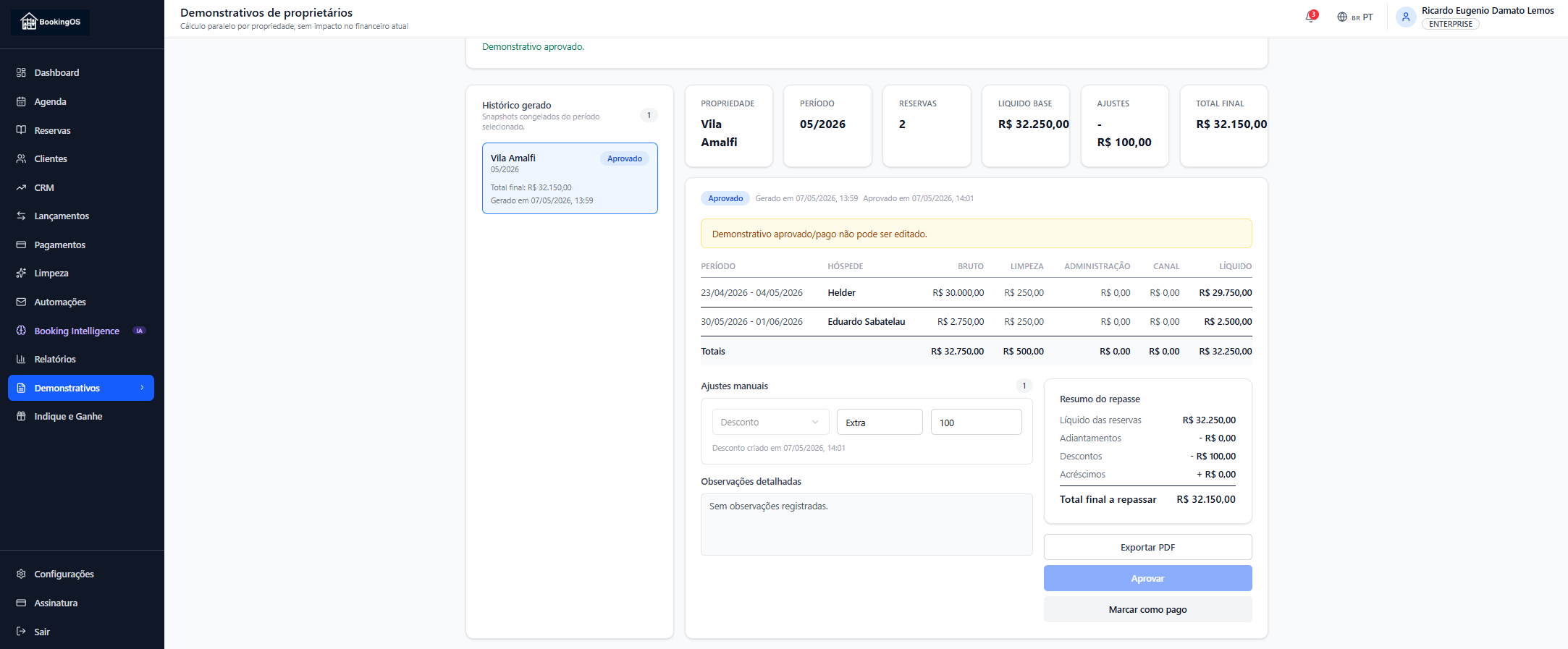
Adjustments exist to record amounts that need to be part of the payout but do not come directly from the period's bookings.
You can add:
When entering an adjustment, check the description and the amount before saving. The payout summary updates to reflect the final total.
When the statement is correct, click Approve. After approval it is frozen and can no longer be edited, becoming the official record of that payout.
After approval, the status changes to Approved, the updated summary stays available for consultation, and editing is blocked to preserve the record.
The owner's view
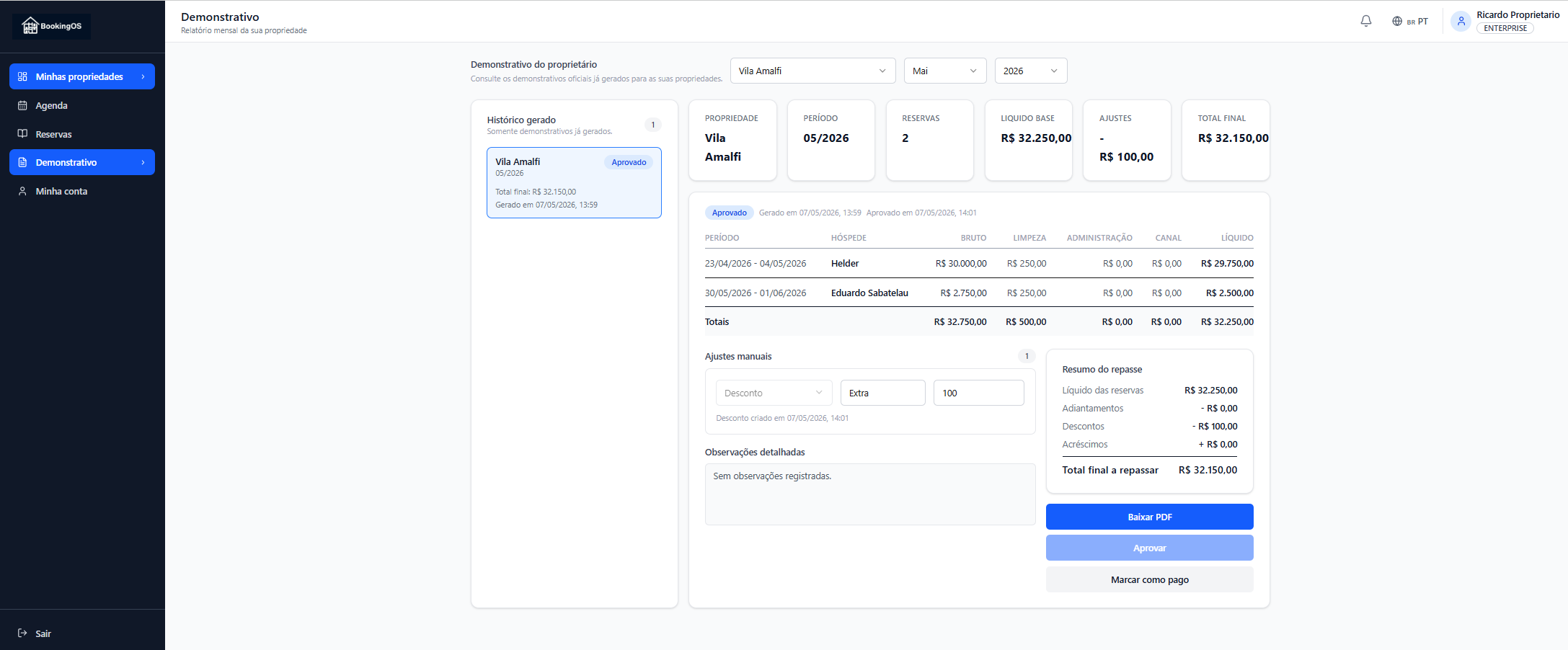
The owner can reach the statements through their own login to the owner portal.
There they can:
That visibility increases transparency, improves the organisation of the operation and conveys more professionalism in reporting.
The logo on the PDF
The statement PDF comes out with your business logo at the top — the same one you already use on your booking site, uploaded under Settings → Profile → Site visual identity.
For it to appear on the PDF, upload the logo as PNG or JPG. WebP files work on the site but are not embedded in the document. If the logo cannot be used, the statement is generated normally without it, and no figure changes.
See how to put your logo on owner statements.
Important tips
Related articles
How to interpret the P&L report
Understand the income statement and see whether your property is generating profit.
How to monitor occupancy rate
See how many days your property was occupied and identify opportunities.
How to put your logo on owner statements
Use your site logo on the owner statement PDF as well, and learn which file format to choose.