How to integrate your Airbnb and Booking.com calendar with Rezvia (iCAL)
Learn how to import and export iCAL calendars in Rezvia to sync Airbnb, Booking.com and other channels without overbooking.
Overview
iCal is a calendar format used by channels such as Airbnb, Booking.com, Vrbo and other booking sites to share occupied dates between platforms.
In Rezvia, the iCal integration helps you centralise your properties' calendars and reduce the risk of overbooking, which is when the same date is sold on more than one channel.
With the integration set up correctly, Rezvia can:
How the iCal integration works
There are two sides to synchronisation.
Importing: external channel into Rezvia
You copy the iCal link from Airbnb, Booking.com or another channel and paste it into Rezvia.
Result: when a booking comes in on that channel, Rezvia receives that information and blocks the dates on the property's calendar.
Exporting: Rezvia to an external channel
You generate an iCal link in Rezvia and paste that link into Airbnb, Booking.com or another channel.
Result: when a booking is created in Rezvia, the other channel receives the block and avoids selling the same date.
Airbnb into Rezvia (importing bookings)
Use this flow when you want bookings made on Airbnb to appear in Rezvia and block the property's availability.
On Airbnb
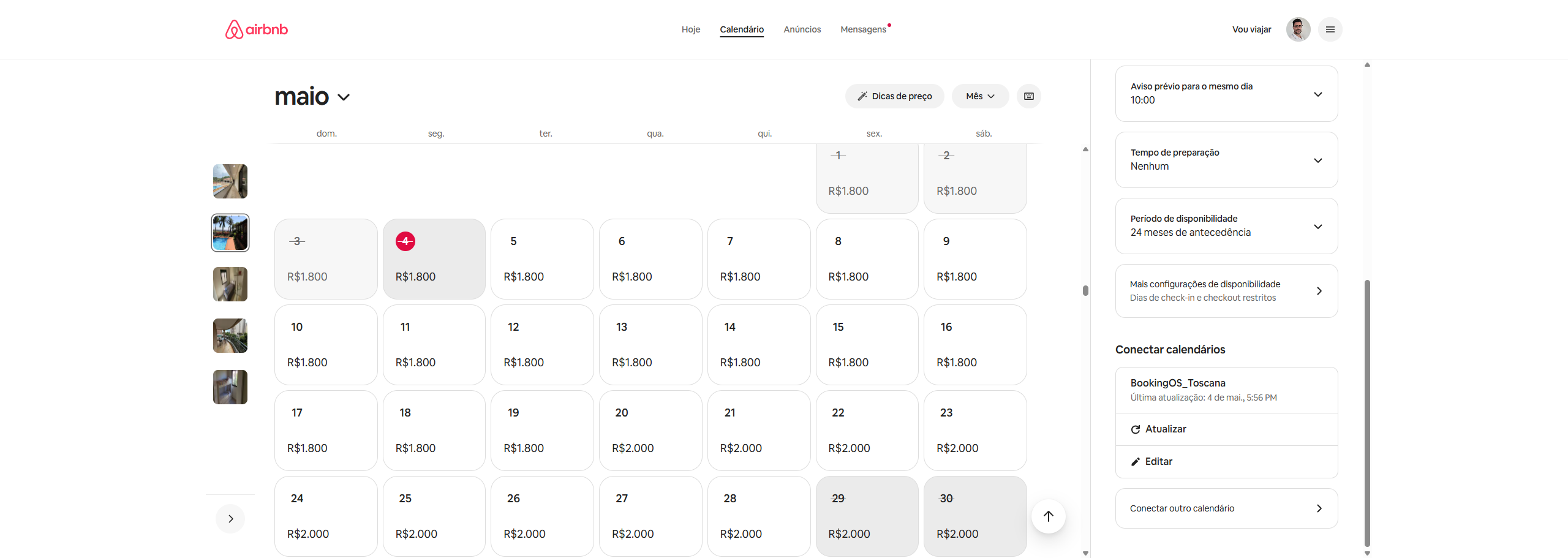
1. Sign in to your Airbnb account.
2. Go to Calendar.
3. Click Availability.
4. Click Connect calendars.
5. Select Connect to another website.
6. Copy the iCal link Airbnb generates.
In Rezvia
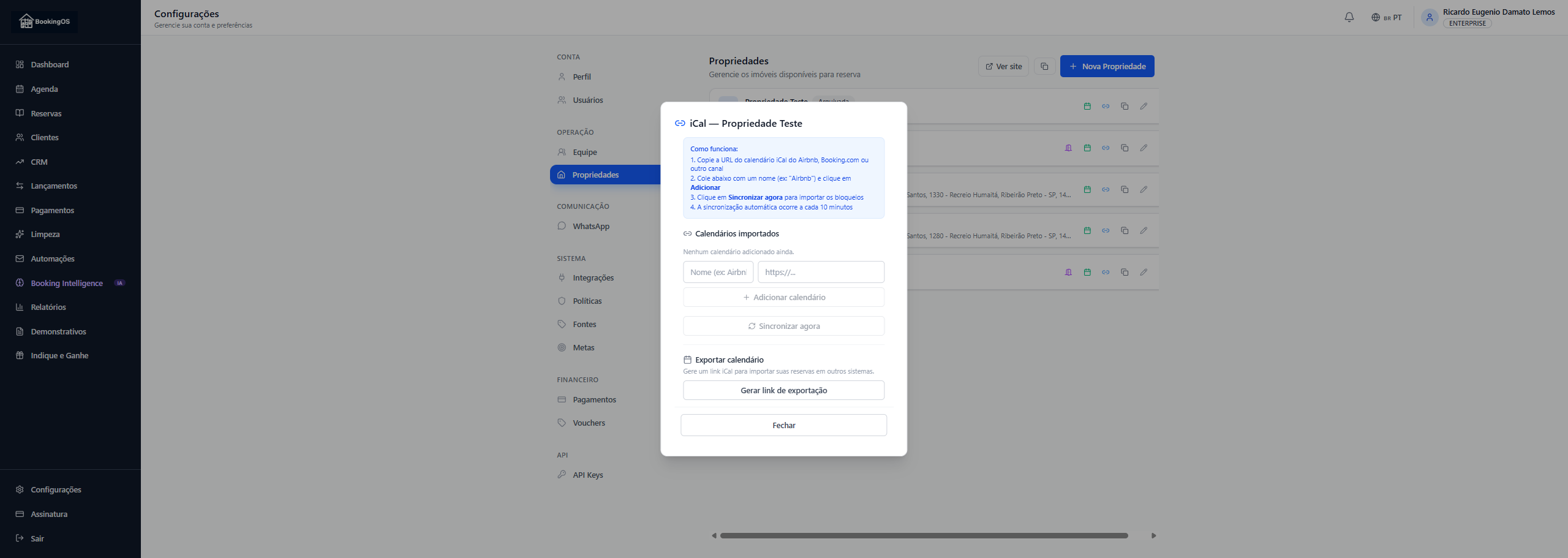
1. Go to Settings.
2. Open Properties.
3. Find the property you want.
4. Click iCal integration.
5. In the Imported calendars section, give it a name that is easy to recognise, such as Airbnb - City Centre House.
6. Paste the iCal link copied from Airbnb.
7. Click Add calendar.
8. To check straight away, click Import now (from OTAs).
From then on you need do nothing else: Rezvia attempts an automatic calendar check every 5 minutes. The import-now button is for testing, and for when you want to check without waiting.
Expected result
Rezvia to Airbnb (exporting blocks)
Use this flow when you want bookings created in Rezvia to block the Airbnb calendar automatically.
In Rezvia
1. Go to Settings.
2. Open Properties.
3. Click iCal integration on the right property.
4. In the Send availability to OTAs section, click Generate export link.
5. Copy the link generated by Rezvia.
The link ends in .ics. That is not a detail: Airbnb rejects addresses that do not end that way, with the message "The URL must be a valid link ending in ICS". Copy the whole link exactly as it appears on screen, without cutting off the end.
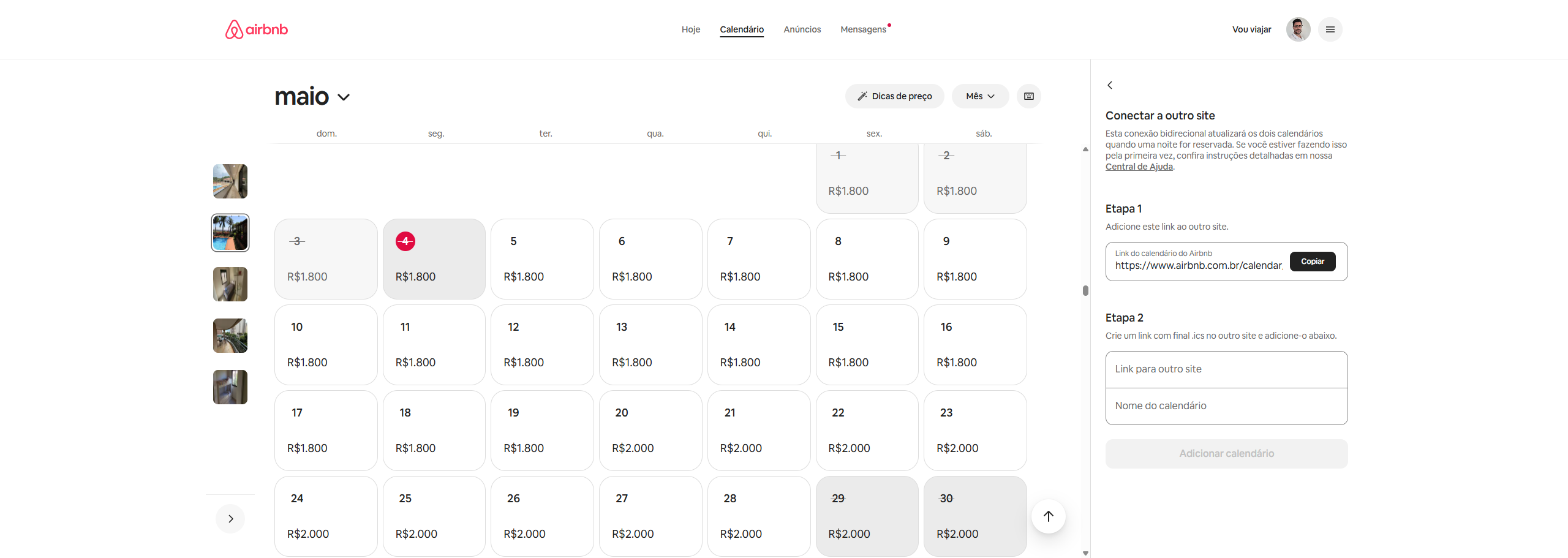
On Airbnb
1. Go to Calendar.
2. Click Availability.
3. Click Connect calendars.
4. Choose Add calendar.
5. Paste the Rezvia export link.
6. Give the calendar a name, such as Rezvia - Direct bookings.
7. Save the configuration.
Expected result
Integrating with Booking.com and other channels
The process with Booking.com, Vrbo, Expedia and other channels is similar:
1. On the external channel, look for the calendar, synchronisation, availability or import/export calendar area.
2. To import bookings into Rezvia, copy the external channel's iCal link.
3. In Rezvia, go to Settings → Properties → iCal integration.
4. Paste the link as an imported calendar and save.
5. To export Rezvia bookings, generate the export link in Rezvia.
6. Paste that link into the external channel as an imported calendar.
How to tell whether a calendar is syncing
Each imported calendar shows, under its name, the state of the last synchronisation — in plain language, with no technical codes. You will see one of these:
Note that an error does not erase the information about the last success. "It failed just now" and "it has been out of date since yesterday" are different concerns, and the screen shows both.
Removing a calendar safely
Click the bin beside the calendar. If a synchronisation is under way at that moment, it is interrupted so the removal can happen — you do not need to wait or try again.
Removing the calendar does not delete the bookings that already came in through it.
Important notes
Good practice
1. Test with a fictitious booking or a manual block before trusting the integration completely.
2. Name each calendar well, for example: Airbnb - Flat 101, Booking.com - Beach House or Vrbo - Chalet 2.
3. Review the integrations periodically, especially after changing a property, a listing or a channel.
4. Do not register multiple identical links on the same property.
5. Use import and export on every important channel to reduce the risk of overbooking.
6. Keep a checking routine, especially over holidays, high season and dates in high demand.
Possible problems and how to solve them
The Airbnb or Booking.com booking did not appear in Rezvia
Check that the iCal link was copied correctly and belongs to the right property. Then open the integration in Rezvia and click Import now.
The Rezvia dates did not block on Airbnb
Confirm you pasted the Rezvia export link into Airbnb. If you pasted the wrong link, Airbnb will not receive bookings created in Rezvia.
Duplicate blocks appeared
Check whether the same iCal link was registered more than once. Remove duplicates and keep only one source per calendar.
The date is occupied on one channel and free on another
Wait a few minutes and force a synchronisation where possible. If it stays inconsistent, review both sides: import into Rezvia and export to the external channel.
The iCal link will not save or gives an error
Check that the link starts with https:// or webcal://. If it starts with webcal:// and the channel does not accept it, try replacing it with https:// keeping the rest of the address.
Airbnb says "the URL must end in ICS"
That message is from Airbnb, about the Rezvia export link you pasted there. Go back to the integration screen, click Generate export link and copy the whole address: it already ends in .ics. The error usually happens when the link was typed by hand or had its ending cut off when copying.
The screen says no new booking came in
That is not an error. It means the read worked and every event in the file was already synchronised — or that the channel has not published the booking in its file yet. Some channels are slow to update. Try again later.
Final checklist
1. The Airbnb, Booking.com or other channel iCal link was pasted into Rezvia.
2. The Rezvia export link was pasted into the external channel.
3. Each calendar has a clear name.
4. No link was registered twice.
5. A test synchronisation was run.
6. The blocked dates were checked on the property calendar.
Related keywords
Rezvia iCal integration, sync Airbnb with Rezvia, integrate Booking.com with Rezvia, import Airbnb bookings, export Rezvia calendar, avoid overbooking, booking calendar, date blocking, property calendars.